
© Felix Rome / Mara Predator Conservation Program


The RMA (Return Merchandise Authorization) section enables users to submit, manage and monitor device return and refurbishment requests in MyVectronic.
Create RMAs
An RMA can be created in MyVectronic to initiate a device return or refurbishment request:
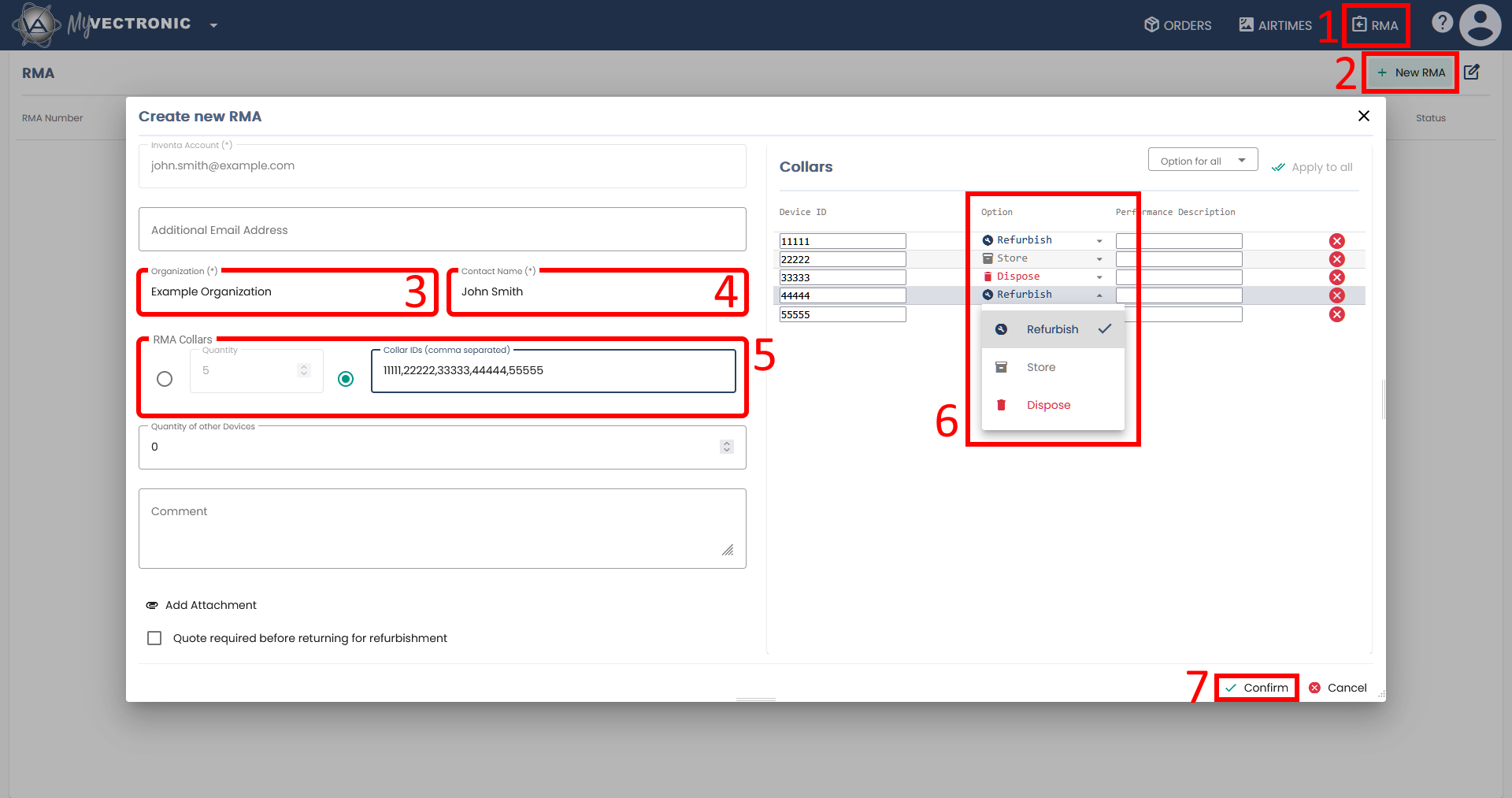
- Make sure you are on the RMA tab.
- Click the button New RMA to open the create dialog.
- Enter the name of your organization.
- Enter your full name.
- Enter the number of devices or provide a comma-separated list of collar IDs.
- Decide what shall be done with your collars: Refurbish, Store or Dispose)
- After you have maybe filled in additional fields, click Confirm to submit your RMA to VECTRONIC.
The following table provides descriptions of the mentioned fields and all other fields in the Create new RMA dialog:
| Field | Description |
| User Information | |
| Inventa Account (*) | Pre-filled with your account; not editable. |
| Additional Email Address | Optional second address to receive notifications. |
| Organization (*) | Your company or organization. |
| Contact Name (*) | Person VECTRONIC contact about this RMA. (Pre-filled) |
| Device Information | |
| Quantity | Number of collars you are returning. |
| Collar IDs | The collar IDs, comma separated. |
| Quantity of other Devices | Additional non-collar devices you are sending along. |
| Additional Information | |
| Comment | Optional free-text note for VECTRONIC. |
| Add Attachment | Upload files (up to 10 MB total) such as photos or invoices. |
| Quote required before returning for refurbishment | Enable if you want a cost estimate before the device is returned. |
(*) Mandatory fields
The table on the right of the Create new RMA dialog lists your declared devices and offers the following options:
| Table Column | Description |
| Device ID | Editable ID or another unique identification of the device. |
| Option |
Procedural options (changeable via drop-down menu):
|
| Performance Description | Optional description of the device’s condition or issue. |
Manage RMAs
An existing RMA can be managed as follows:
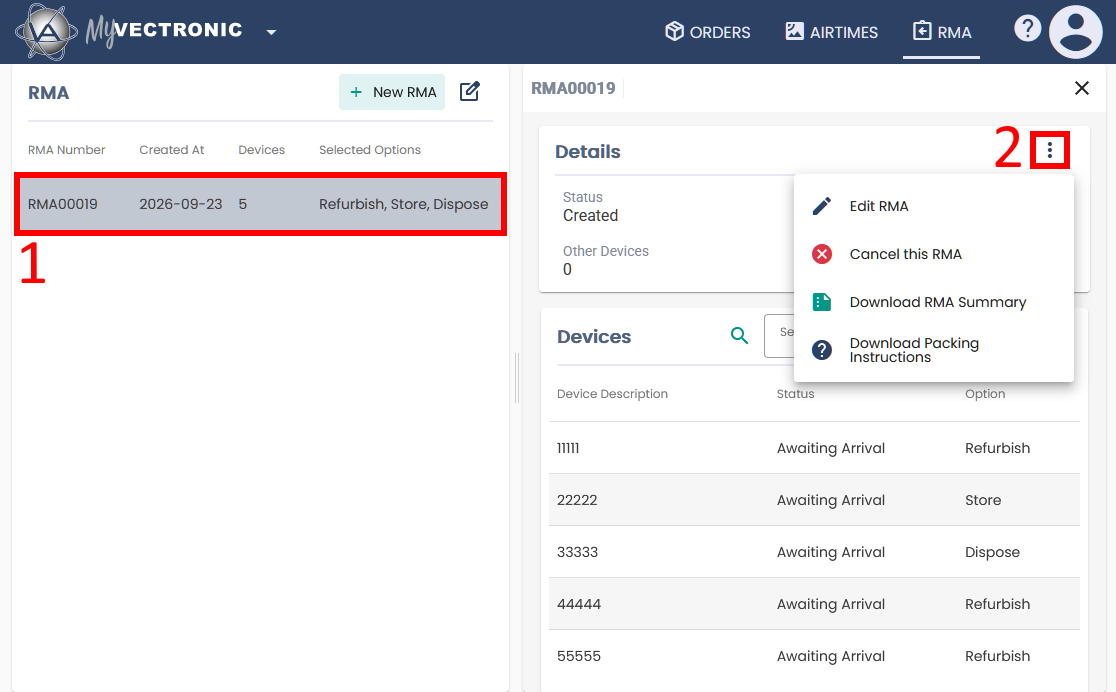
- Select an RMA from the table to open its details.
- In the Actions menu, you will find the following buttons:
| Button | Description | |
 |
Edit the RMA* | Change devices, options, or contact information. |
 |
Cancel this RMA* | Cancel RMA if you no longer want to proceed. |
 |
Download RMA Summary | Download PDF summary of RMA. |
 |
Download Packing Instructions | Download general shipping guidelines. |
*Only available before the package arrives at VECTRONIC.
Track RMAs
Every collar within the RMA has its own status, and in addition an RMA has an overall status. The overall status of the RMA is derived from the most advanced device and the arrival of the package, so it reflects where the whole request stands.
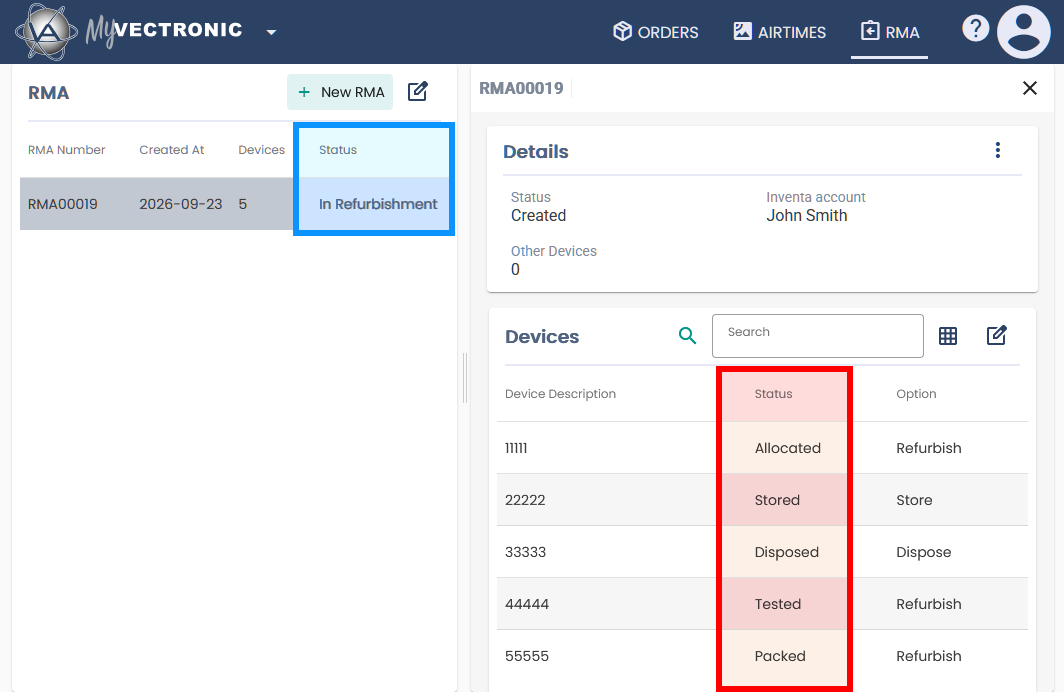
Each device status within the RMA is tracked individually through this order:
| Device Status | Description |
| Awaiting Arrival | The device has not been received or identified yet. |
| Identified | The device has been recognized during intake. |
| Inspected | The device has been inspected and is waiting for a decision. |
| Awaiting Allocation | It will be refurbished, but no order has claimed it yet. |
| Allocated | The device has been claimed by a refurbishment order. |
| Tested | The device has passed its final test. |
| Packed | The device is packed and ready for shipping. |
| Shipped | The device has been shipped back to you. |
| Terminal states | |
| Intake Failed | The device could not be identified during intake. |
| Stored | The device stays with VECTRONIC. |
| Disposed | The device has been recycled or destroyed. |
The overall RMA status follows this order:
| RMA Status | Description |
| Created | RMA submitted but package has not arrived at VECTRONIC. |
| Package Received | The package has arrived at VECTRONIC. |
| Device Inspection | The devices are being identified and inspected. |
| Quotation (if requested) | A quote is being prepared before the device is returned. |
| In Configuration | The devices are being configured. |
| In Refurbishment | The devices are being repaired and refurbished. |
| Completed | The RMA process is finished. |
This is how the most advanced device status affects the overall RMA status if it passes the whole RMA process all the way through to return to the customer:
