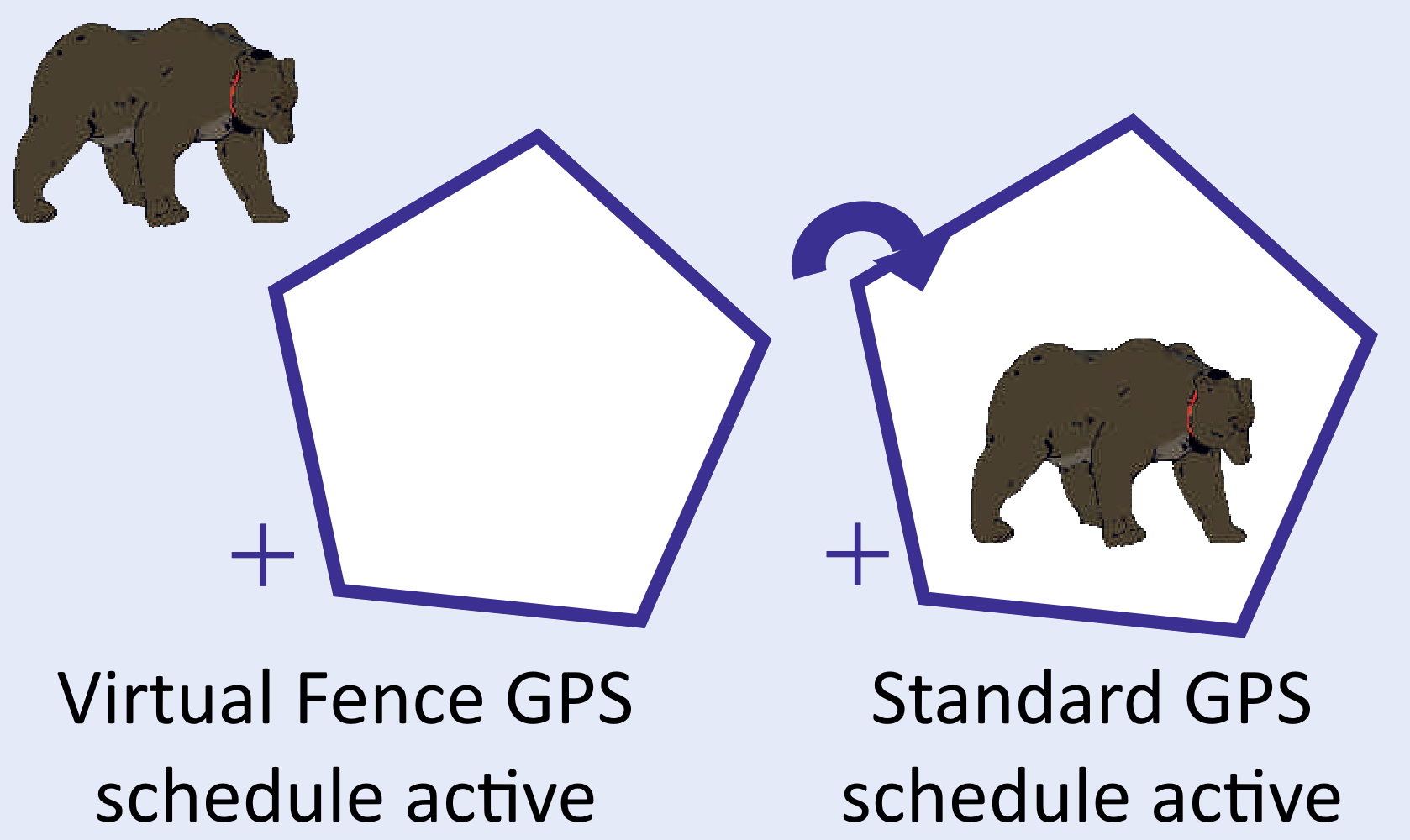
© Felix Rome / Mara Predator Conservation Program

INVENTA
Virtual Fence
Related Articles:
• Send Remote Commands
- Required Combined Send: You must always send the drawn Virtual Fence map together with the Virtual Fence Schedule (VF schedule + VF map).
- Remote command Point Limit: A Virtual Fence is strictly limited to a maximum of 12 points, and shapes exceeding this limit cannot be sent via remote commands.
Overview: To use the “Virtual Fence” feature, the Virtual Fence Mode must be ON and at least one polygon must be programmed. The Virtual Fence Schedule is optional and only necessary if you want to change the timing inside/outside the Virtual Fence. If you want notifications when entering or leaving the Virtual Fence, make sure at least one notification email address or mobile number is existing in INVENTA for this collar ID. Entering or leaving the Virtual Fence can only be detected with the next scheduled GPS position. Notifications can only be sent in real time if the collar has satellite / IoT reception.
In the left side menu, you will find the three mentioned options at:
- Virtual Fence
- Virtual Fence Schedule
- Virtual Fence Map
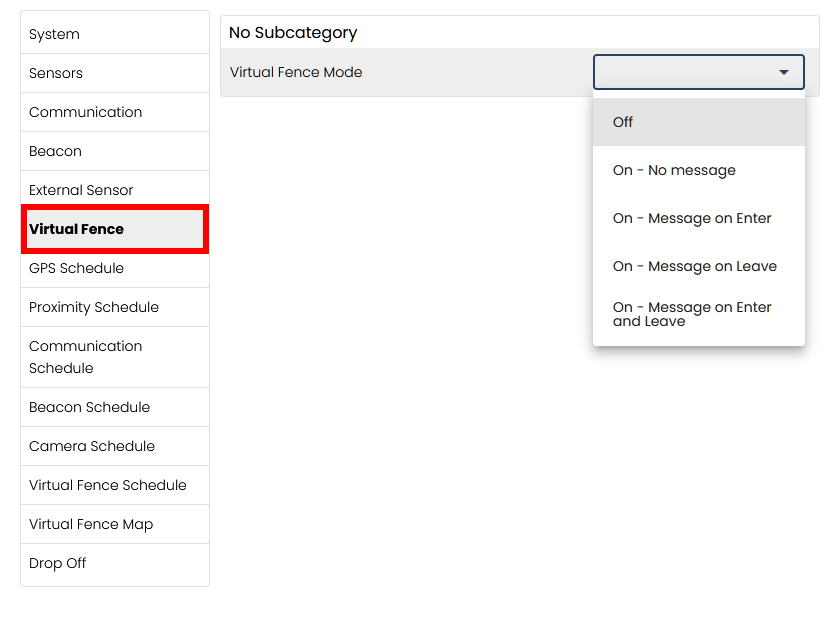
Changing the Virtual Fence mode using the ‘Virtual Fence’ menu item
Here, the Virtual Fence mode can be switched on or off. You can also decide if messages should be sent to the notification addresses associated with the collar when the collar leaves and/or enters the virtual fence:
Creating a Virtual Fence schedule using the ‘Virtual Fence Schedule’ menu item
Creating a Virtual Fence Schedule works the same way as creating a GPS Schedule. For detailed instructions, please refer to ‘GPS schedules‘.
Drawing or uploading a Virtual Fence using the ‘Virtual Fence Map’ menu item
You can either draw Virtual Fences or upload a kml file.
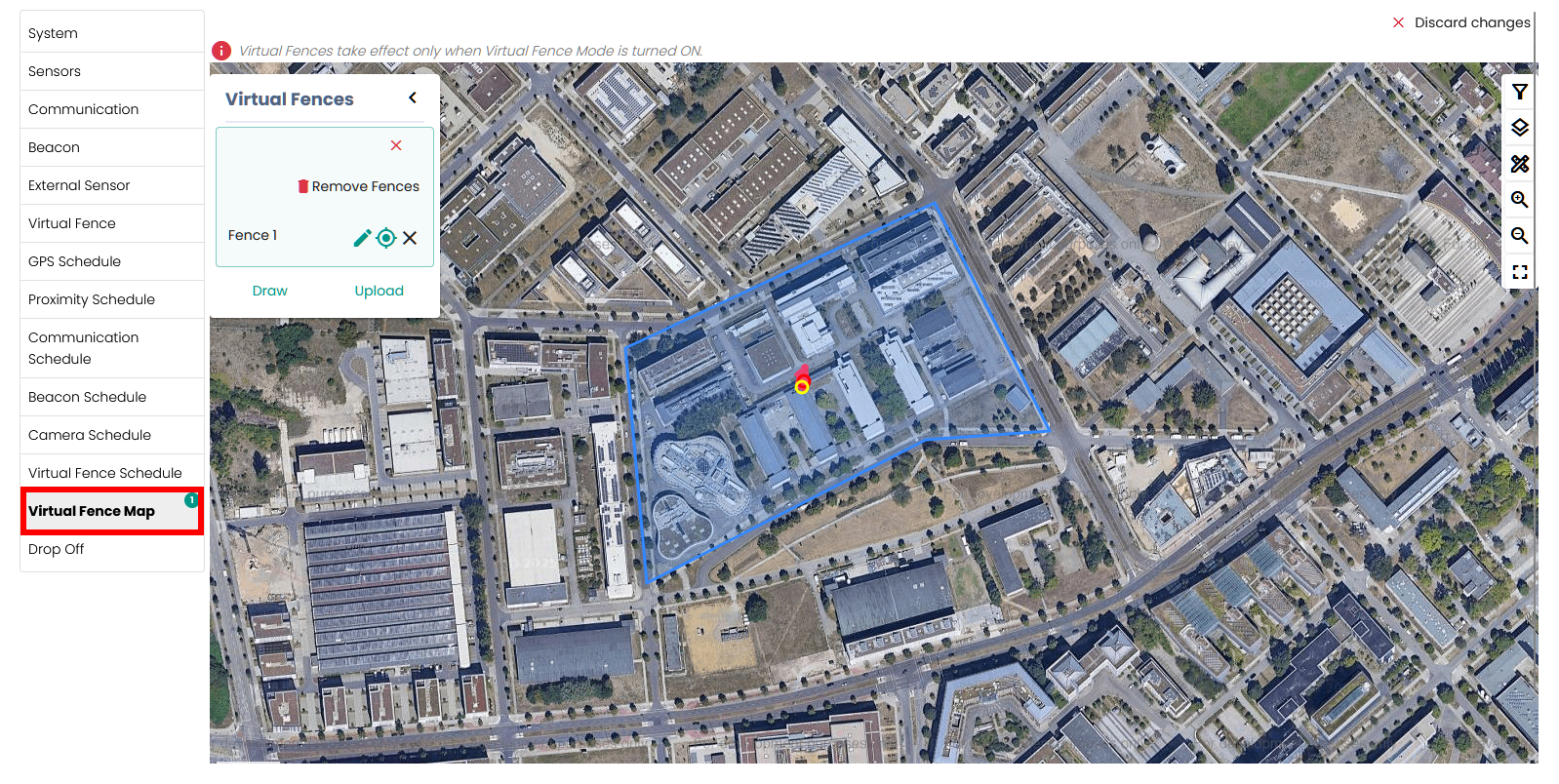
You can draw a Virtual Fence by clicking the Draw button and placing points on the map to create a closed polygon. To edit the fence, click the edit icon next to its name. You can drag points to adjust their position, click a white point to delete it, or click a gray point to add more points. The In/Out button revealed by the edit icon defines the area of the fence either inside or outside the closed polygon. The button does not work if there are several separate polygons. Press the Save button to apply your changes.
You can also upload a .kml file containing a polygon that you have created in Google Earth.
Please note:
- The blue area always represents the inside of the Virtual Fence. The Virtual Fence schedule applies here if defined.
- The non-blue area always represents the outside of the Virtual Fence, where the normal GPS schedule applies.
- The lines of one or more virtual fences can only partially overlap, but never completely.
- A polygon maximum per command is set depending on the communication type.
- Commands containing Virtual Fence polygons overwrite all existing Virtual Fence polygons on the collar, making it impossible to split Virtual Fences across multiple commands.
- To ensure the animal does not pass through the Virtual Fence undetected, the fence must be wide enough and the GPS tracking interval short enough.
Inner Virtual Fence
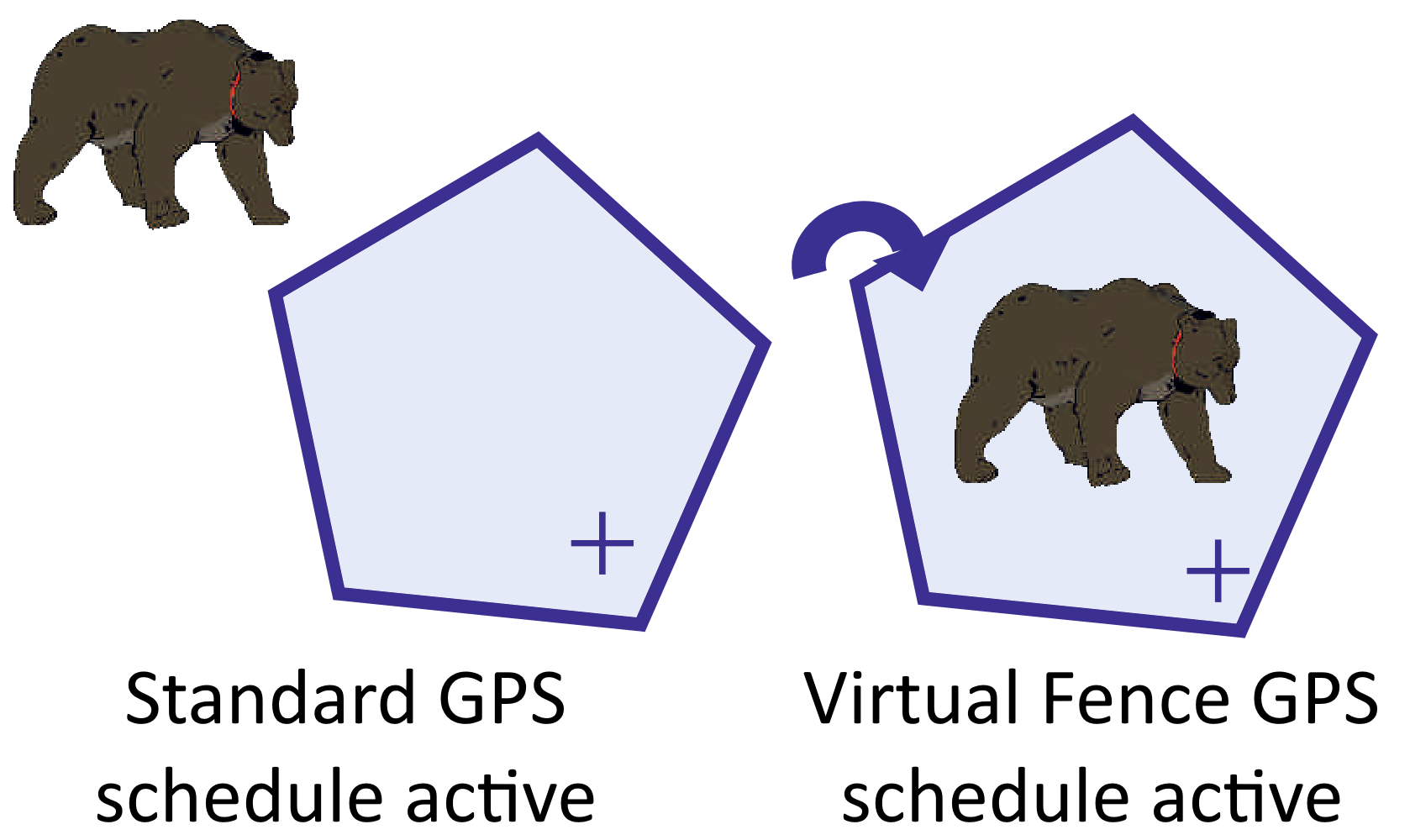
Outer Virtual Fence