
© Felix Rome / Mara Predator Conservation Program

INVENTA
Related Articles:
• Send Remote Commands
Permissions:
Your INVENTA account needs to hold Owner permissions or Device Manager permissions on the collar.
On the INVENTA Commands page, first click the ‘New Command’ button on the right side of the table header.
In the appearing ‘New Remote Command’ window, enter one or more collar IDs into the filter. The available Remote Command types for your collars will now be displayed.
The number of GPS fixes per transmission is specified under ‘Communication IR/GSM/IoT Mode’ with the parameters ‘Message Mode’. If the parameter ‘Message Mode’ is set to 4, a device on an hourly schedule still collects a GPS fix every hour but transmits them all after 4 hours.
By default, schedules operate in UTC unless you configure the parameter UTC correction.
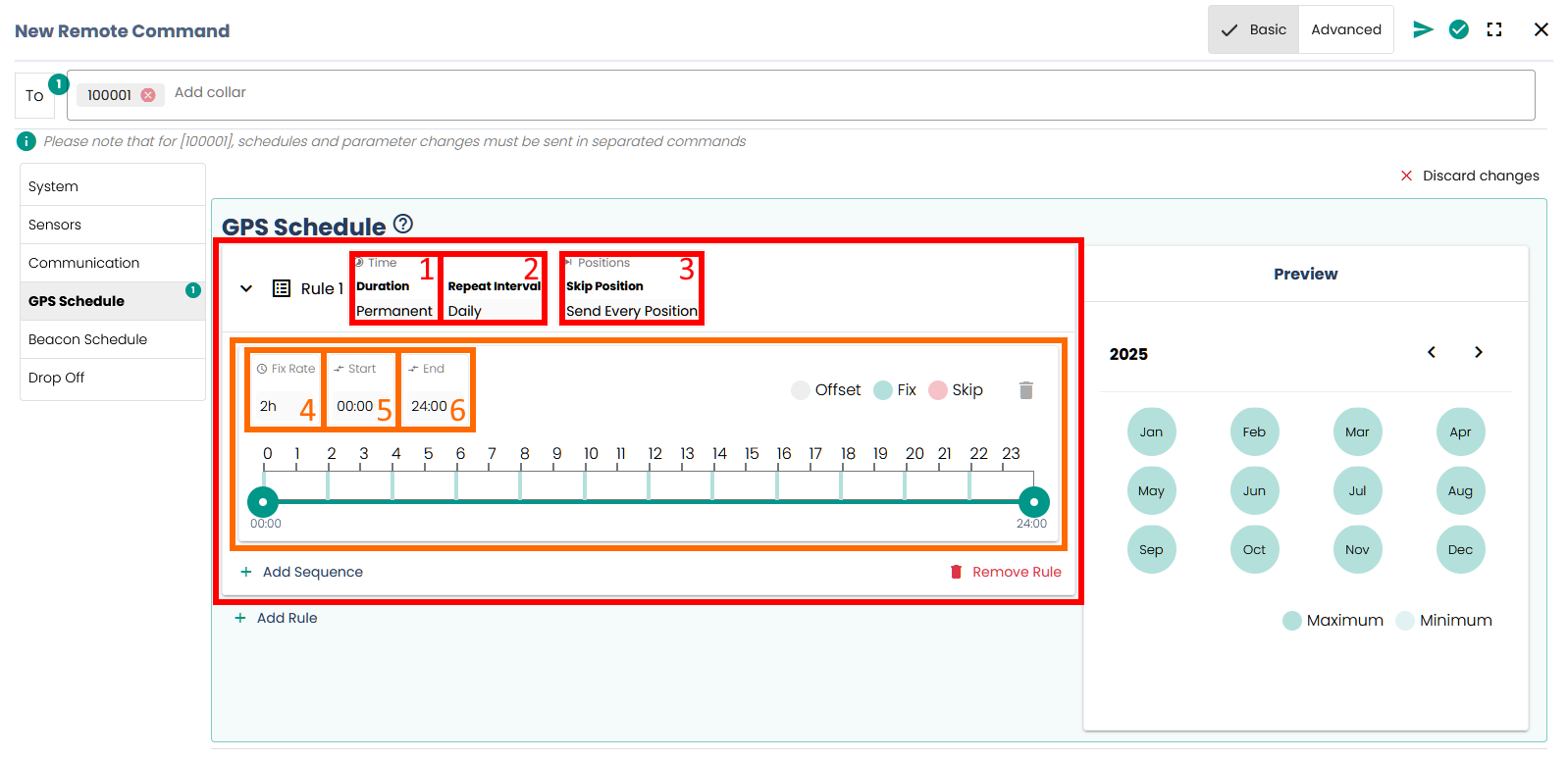
You can configure the following within a rule:
- Duration: Time in which this rule is active
- Permanent
- Temporary period of time
- Repeat Interval: Period after which the rule starts again
- Daily
- Weekly
- Custom interval of days, hours and minutes
- Skip Position (GPS schedule only): Positions that are not transmitted but only stored in the collar (e.g., skip 3: only every 4th position is transmitted)
- Send Every Position
- Dedicated count value that specifies how many GPS positions should be skipped and not sent during data transmission
- Fix Rate: Time interval of hours and minutes that describes the GPS position acquisition frequency
- Start: Time of day in hours and minutes according to the UTC correction at which the acquisition of the first position begins
- End: Time of day in hours and minutes according to the UTC correction at which the acquisition of the positions stops
Tip: Set the End value at least 5 minutes after the last desired fix to ensure that it is recorded.
As soon as you start setting up the schedule, a Submit button will appear at the top right, which you can use to send your configuration to the collar.
Before sending, you will receive a summary of all changes after clicking Submit, which you must confirm by clicking Confirm. Always check the calendar preview here to ensure your schedule is defined as expected.
Please keep in mind:
Applying a schedule to the collar means overwriting the previous schedule. The change is NOT additional.
Good to know:
- Schedules can contain one or more rules.
- Rules can contain one or more sequences.
- If rules/sequences overlap, both are applied.
- Permanent rules should be used for continuous, permanent aquisition and should not be modified frequently.
- Temporary, additional rules will allow a GPS aquisition change for a defined period of time and then return to the permanent rule.