
© Felix Rome / Mara Predator Conservation Program

INVENTA
Please note: Your INVENTA account must have at least Device Manager permissions for the Drop Off you want to configure.
If your Drop Off is available, you can connect it to INVENTA Desktop via a USB Remote Stick to access and edit its configuration.
Connect the Drop Off via USB Remote Stick using INVENTA Desktop
Use this USB Remote Stick:
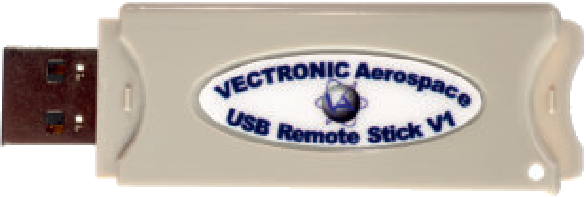
Once you have connected the USB stick, INVENTA Desktop should automatically take you to the page Local Devices, where you can establish a connection to your Drop Off:
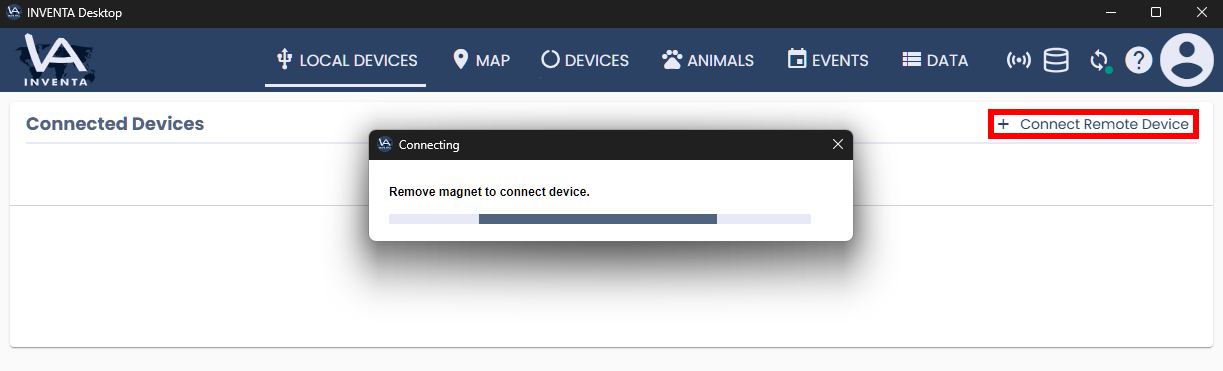
- Switch to the tab ‘Local Devices‘ if it does not happen automatically.
- Click the button ‘+ Connect Remote Device’ in the top right corner.
- If requested remove the magnet from the Drop Off to establish a connection.
Configure a locally connected Drop Off using INVENTA Desktop
Access the properties of your Drop Off to edit its parameters:
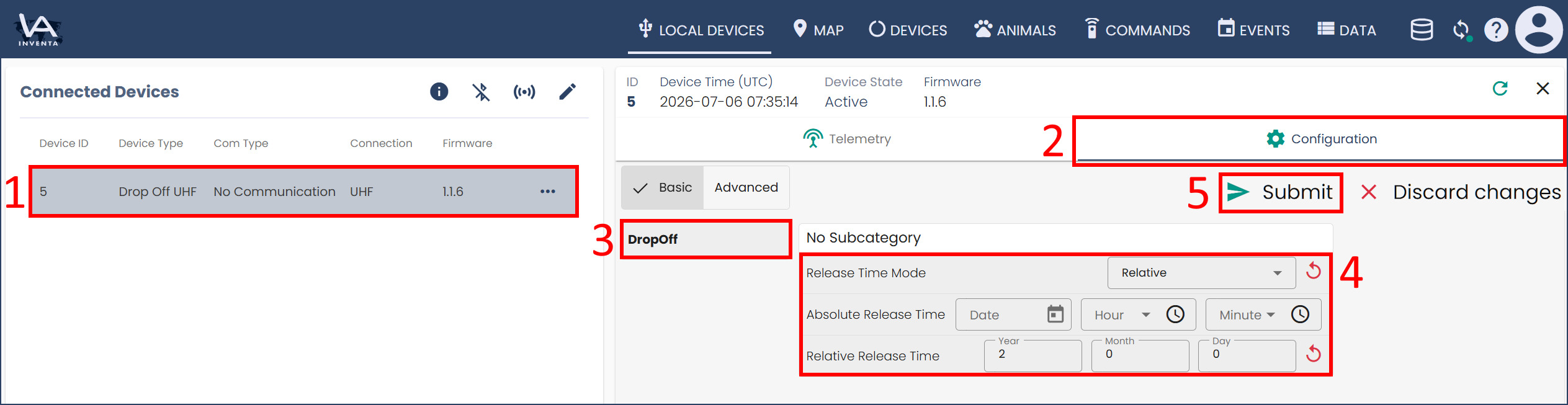
- Click on the table row that contains the Drop Off you want to configure.
- In the Drop Off details that appear on the right, switch to the sub tab ‘Configuration‘.
- Select the category ‘Drop Off‘ and find the desired parameter.
- Click on the parameter, adjust the value and press the Enter key.
- As soon as you have edited the parameter, a Submit button appears, at the top right corner.
Good to know:
- The connection between the USB Remote Stick and the Drop Off is not constant and must be reestablished before every read and write operation.
- Each connection is established by reattaching and then removing the magnet from the Drop Off.
- It may be necessary to try to establish the connection several times before an action can be started.