
© Felix Rome / Mara Predator Conservation Program

INVENTA
Related Articles:
• Send Remote Commands
IMPORTANT NOTE:
Schedules apply only to the camera ID currently linked to your collar ID in INVENTA. Since physical battery changes often result in a collar being paired with a new camera, please verify that the camera ID in INVENTA is up to date and the Camera Mode is enabled before applying any schedules to avoid targeting the wrong device.
You can find both configurations at:
‘Devices’ → ‘Collars’ → ‘Collar Details’ → ‘Telemetry’ → ‘Sensors’ → ‘Camera’
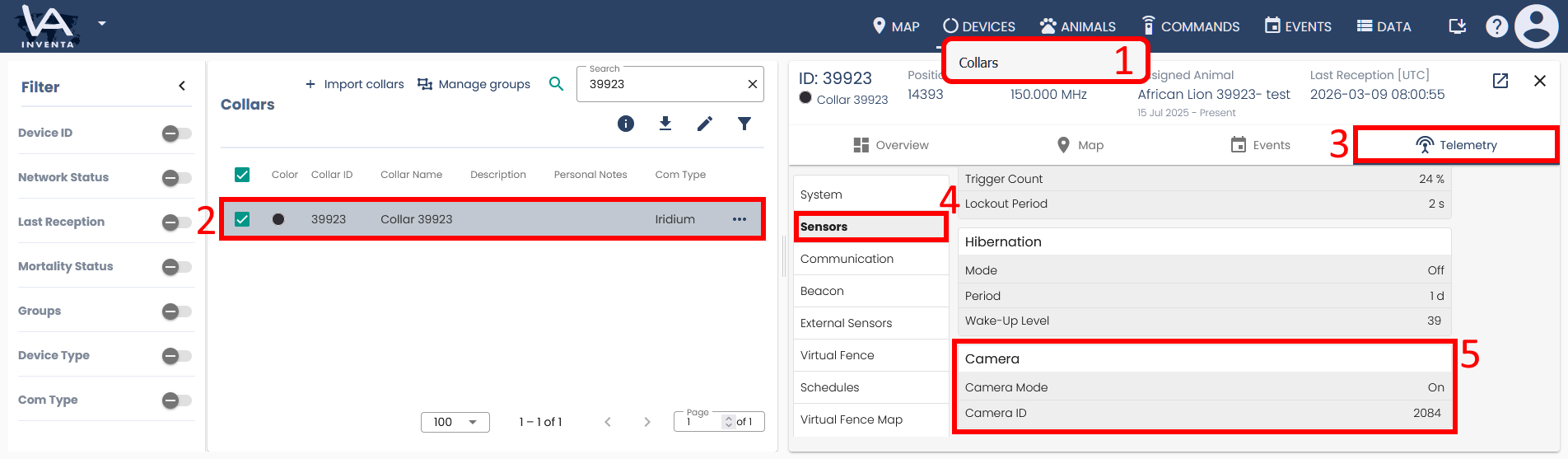
If you have any doubts about the settings, please review your camera schedule with our support team before applying it to the collar.
You can configure the following within a rule:
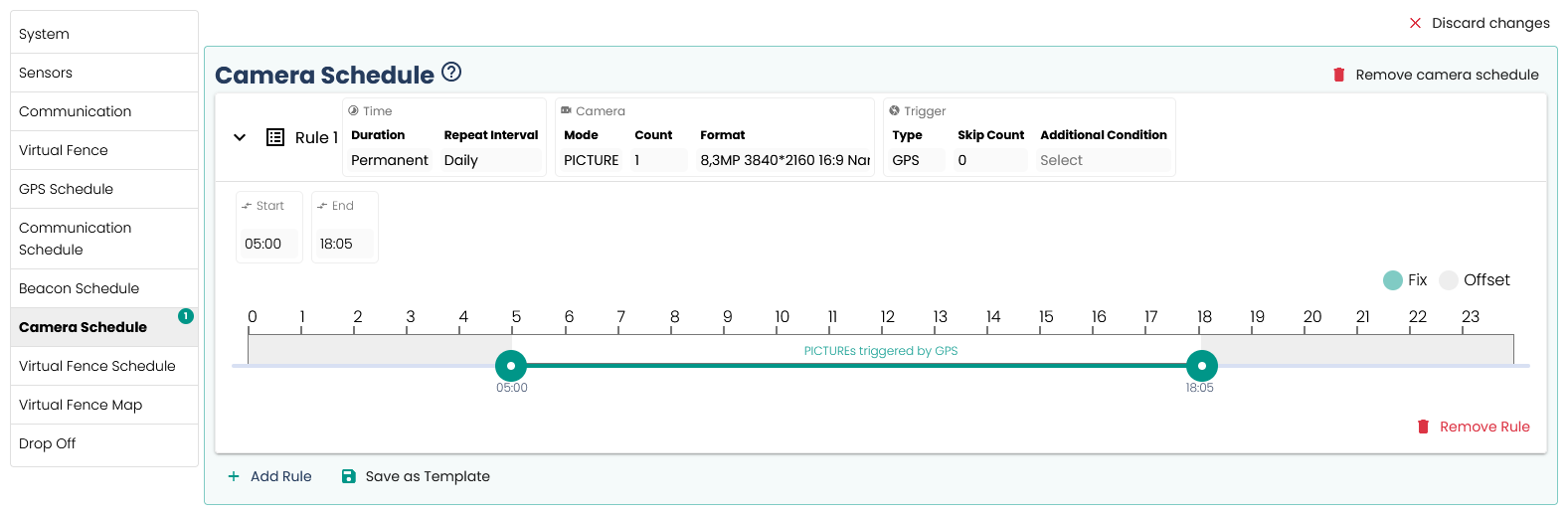
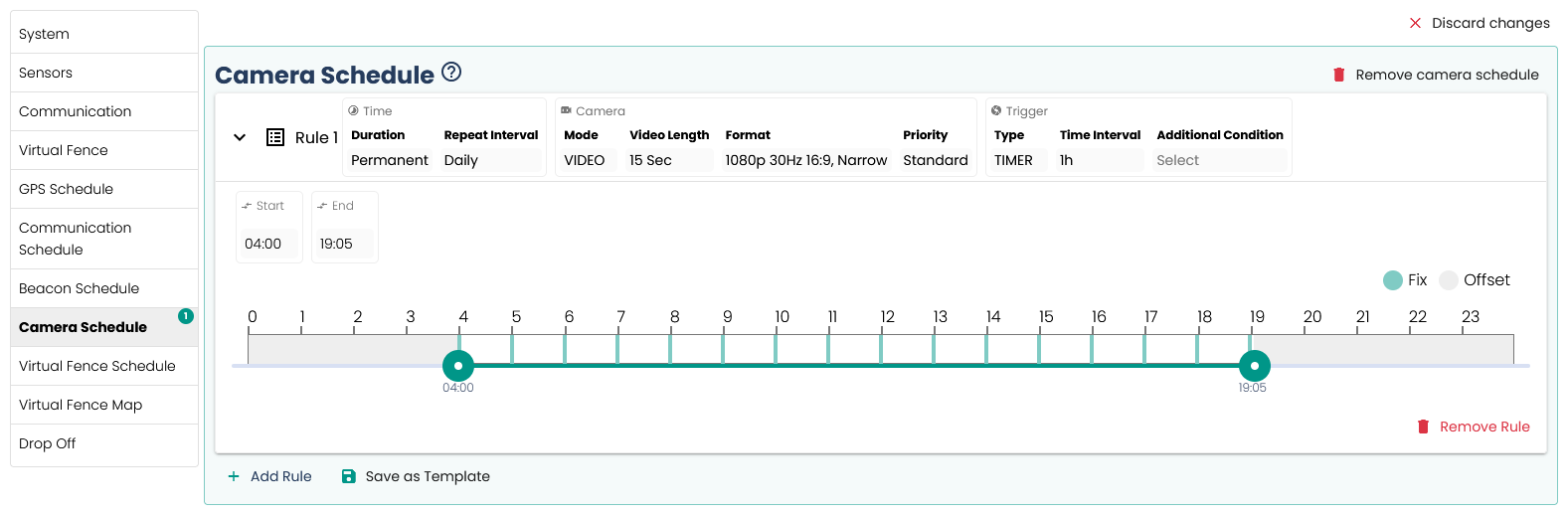
- Duration: Time during which this rule is active
- Permanent
- Temporary (for a defined period of time)
- Repeat Interval: Period after which the rule repeats
- Daily
- Weekly
- Custom interval of days, hours and minutes
- Camera Mode:
- Video
- Photo
- Trigger Type:
- GPS: Triggers on every GPS fix. Increase ‘Skip Count’ to skip fixes
- Time: Set trigger interval [HH:MM:SS] (Recommended)
- VIT: Triggers on birth and/or expulsion
- Proximity: Triggers based on collar´s proximity settings
- High Activity: Triggers when activity exceeds a defined threshold
- Additional Trigger Condition (optional):
- Proximity
- No Proximity
- Inside Virtual Fence
- Outside Virtual Fence
- VIT Implanted
- VIT Expelled
- VIT Contact
- VIT No Contact
- Start:
- Time of day in hours and minutes according to the UTC correction at which the acquisition of the visual footage begins
- End:
- Time of day in hours and minutes according to the UTC correction at which the acquisition of the visual footage stops. (Note: Set End Time at least 5 minutes after the last recording to ensure it completes.)
Depending on the camera mode you select there are additional fields:
Photo Count:
- Series of 1–100 photos. Define the interval (MM:SS) between photos
Photo Format:
- Photo size in pixels and aspect ratio
Video Length:
- Duration in HH:MM:SS
Video Format:
- Resolution, frame rate in Hz, and aspect ratio
Video Priority:
- Videos with high priority are not interrupted by other recording processes in case events overlap in time
Illustrative photo camera schedule
Illustrative video camera schedule
As soon as you begin configuring a schedule, a Submit button will appear in the top right corner, which you can use to apply your configuration to the collar.
Before sending, you will receive a summary of all changes after clicking Submit, which you must confirm by clicking Confirm. Always check the calendar preview here to ensure your schedule is defined as expected.
Please keep in mind:
Applying a schedule to the collar means overwriting the previous schedule. The change is NOT additional.
Good to know:
- Schedules can contain one or more rules.
- If rules overlap, both are applied.