
© Felix Rome / Mara Predator Conservation Program

INVENTA
Here you can read how to upgrade or downgrade your own INVENTA user role and the related permissions.
Depending on your needs, start by selecting one of the Devices sub-tabs:
• Collars
• Traps
or the Animals tab to proceed:

To raise your user role and the related permissions for a Device or an Animal, you must initiate an Upgrade Permissions Request.
You can do this in three different ways, depending on which one you prefer.
Use the table row action to send an ‘Upgrade Permission Request’
If you want to raise your user role for an individual Device or Animal, you can use the action of the Device’s/Animal’s table row:
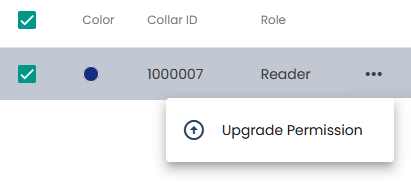
1. To view row actions, look at the end of the table row and click the three dots •••
2. Then select the row action Upgrade Permission
Use single edit to access the Device/Animal properties to send an ‘Upgrade Permission Request’
To edit your user role for a Device/Animal, you can open its properties and request a role of your choice in the Managers table.
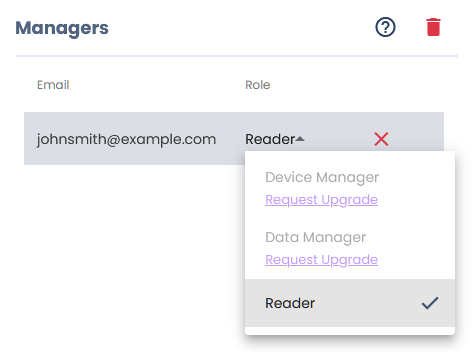
1. Click the table row/checkbox for the Device/Animal to display its properties
2. Find the Managers table and click on your current role to view your higher-level role options
3. Click on your desired role to initiate the Upgrade Permission Request
Use multi edit to access many Devices/Animals to send an ‘Upgrade Permission Request’
If you want to edit your user role and the corresponding permissions for multiple Devices or Animals, you can check as many checkboxes as desired from the table to open the multi select menu and select Manage Permission from there:
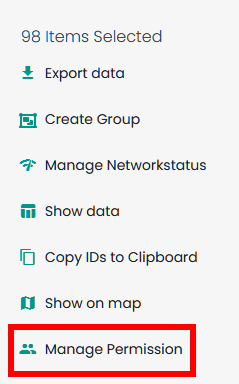
1. Check the checkboxes for all Devices/Animals you want to raise your user role for
2. Select Manage Permission from the multi select menu
3. Click on your user role in the Managers table to view your higher-level role options
4. Click on your desired role to initiate the Upgrade Permission Request
Permission Request
All three ways described above lead to the initiation of a Permission Request sent to the Device Owners and Device Managers as well as to Animal Data Managers.
- Devices: Requests to Owners and Device Managers
- Animals: Requests to Animal Data Managers
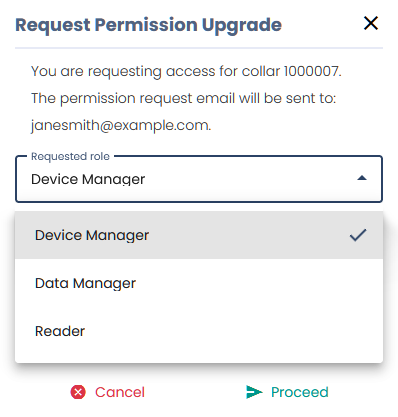
1. If not already done, select your desired user role
2. Click the button Proceed to send the Upgrade Permission Request
Good to know:
- In the same way, it is possible to downgrade your user role. Permission requests are not necessary. (If you are the owner of a collar, you cannot lower your user role.)
- In case you do not yet have Device or Animal permissions, please read: Add a Collar
- To get an overview of user roles and their permissions, consult: Table of User Permissions
Accept Permission Request
Device Owners and Device Managers as well as Animal Data Managers will receive a notification via email and within INVENTA, allowing them to either accept or deny the request.
1. Click the bell icon
2. Decide whether you want to accept or deny the permission request
